Help & Documentation
AGetting Started
Introduction#
The Edgy is an edging control application for The Handy. It provides an arousal dial that runs in reverse - the higher you turn it (closer to orgasm), the more the device reduces stimulation, keeping you on the edge.
The app has two main modes. Game Mode runs live sessions with your device, driven either by a behavior - a reactive movement personality that responds to your arousal in real time - or by a funscript video, where the device follows a script synced to the video. Editor Mode is where you create and customize your own behaviors with visual curve editing.
Getting Started#
The Edgy works with The Handy (WiFi), 750+ Bluetooth toys via Intiface Central, and T-Code devices (OSR2, SR6) via serial. Pick your connection mode in the connection panel.
The Handy - Enter your connection key (found on your Handy account at handyfeeling.com). The app communicates directly with the device through the official Handy API over WiFi.
Firmware v4 or later is required. Visit handyfeeling.com/update to update your device if needed.
Intiface - Install Intiface Central (intiface.com/central), start the server, pair your device via Bluetooth, then enter the WebSocket URL (default: ws://localhost:12345) in The Edgy's connection panel. Supports 750+ devices.
T-Code - Serial devices (OSR2, SR6) connect via USB. Select the COM port and baud rate (default: 115200) in the T-Code tab. Alternatively, you can bridge through Intiface Central.
Note: Bluetooth devices may experience latency with fast commands (vibrato, tremolo). For best responsiveness, WiFi (Handy) or serial (T-Code) connections are recommended.
No device? The app works in simulator mode - all behaviors run locally so you can explore the interface and editor without hardware.
Creator's pick
The Edgy was originally built for The Handy, and it remains the device I use. The WiFi connection gives the best responsiveness for edging sessions.
For the sleeve, I use the TrueGrip Gen 2. The texture make a real difference in how you feel the strokes.
That said, edging is deeply personal - everyone responds differently, so experiment to find what works best for you.
Disclosure: Some links above are affiliate links. I may earn a commission at no extra cost to you. It funds The Edgy and never affects what I recommend.
Connect your device#
The Edgy drives The Handy, Lovense, and 750+ Bluetooth and serial toys. Pick the method that matches your device.
The Handy
The Handy connects over WiFi with a Connection Key, no app or cable. Get the key from handyfeeling.com under My Account, paste it in the Handy field, and connect. If a firmware update is required, the panel links you to the updater.
Intiface (Bluetooth, 750+ toys)
For Bluetooth toys (Lovense, WeVibe, Kiiroo, Magic Motion and more), install Intiface Central on your computer and start its server. Enter the WebSocket URL it shows (default ws://localhost:12345) in the Intiface field and connect. Intiface handles the Bluetooth pairing; The Edgy talks to it. You can also turn on interpolation (10/20/50 Hz) for smoother motion.
Serial / T-Code (OSR2, SR6, DIY)
DIY T-Code strokers (OSR2, SR6 and similar) connect over USB with WebSerial. Use a Chromium browser (Chrome, Edge or Opera) on desktop, plug the device in, click Connect, and pick its serial port. WebSerial is not available on mobile or Firefox, use Intiface there instead.
Lovense (native Game Mode)
Lovense toys can also connect directly over your local network without Intiface, using the official Lovense Remote app:
- Open the official Lovense Remote app and connect your toy to it as usual.
- In the app, start Game Mode and enable LAN.
- Note the local IP address the app shows, and enter it in the Lovense field on The Edgy.
- Connect, and your toys show up as detected devices, ready to bind.
Your phone (running Lovense Remote) and the device running The Edgy must be on the same WiFi network.
This direct connection is experimental. The firmware controls playback timing itself, so fast scripts can drift or lag a little. For the most reliable Lovense setup I still recommend Intiface.
Devices & Channels#
Connecting several devices
You can connect several devices at once and run them together: The Handy over WiFi, Bluetooth toys through Intiface, and a T-Code device over serial. Each connection gets its own section in the connection modal and its own chip in the header.
A single Intiface connection drives every toy paired with it. Each toy, and each of its actuators, appears as a separate entry you can configure and route.
Settings are per device, not per connection: stroke range and invert direction for linear actuators, intensity range for vibrators, and a sync offset to align a device that lags behind. Each device has its own card.
Every connected device shows as its own chip in the header, listing the channels it plays (e.g. "Vibrate V0") and, for battery-reporting toys, a live charge indicator. Click a chip to jump to its settings.
Channels & axes
A behavior or funscript is made of channels: stroke, vibration, and OSR axes (surge, sway, twist, roll, pitch). A channel is a logical stream of motion, independent of any specific device.
The Edgy follows the community multi-axis convention (the same axis codes used by multi-axis players like MultiFunPlayer). Each channel maps to a standard axis code:
| Channel | Axis | Type |
|---|---|---|
| Stroke | L0 | Motion (position) |
| Surge | L1 | Motion (position) |
| Sway | L2 | Motion (position) |
| Twist | R0 | Motion (position) |
| Roll | R1 | Motion (position) |
| Pitch | R2 | Motion (position) |
| Vibrate | V0 | Intensity (magnitude) |
| Pump | V1 | Intensity (magnitude) |
| Suck | A1 | Intensity (magnitude) |
These axis codes also drive funscript auto-detection: clip.funscript loads as stroke, clip.twist.funscript or clip.R0.funscript loads as twist, clip.vibrate.funscript or clip.V0.funscript loads as vibration, and so on. Extra vibrators can be numbered (Vibe1, Vibe2...).
Binding channels to devices
Open the connection modal and switch to the Binding tab (a dedicated Binding shortcut also sits in the header, next to the device chips). This is where you decide which physical actuator plays each channel.
The binding panel maps channels to the physical actuators of your connected devices. On connection, channels auto-match by type and axis code (stroke to a linear actuator, vibration to a vibrator). You can reassign, disable, or remove any binding.
The panel offers the standard channels by name even when the current behavior does not use them, plus an "add a channel" button - handy when you have several vibrators. A channel with no source simply stays idle, it never blocks the others.
A vibrator with no dedicated channel can still react to the action: its intensity is derived automatically from the current stroke speed, so a vibe and a stroker stay in sync without any setup.
Each bound channel has a fallback derivation you can pick per channel: Auto (smart default), Speed (intensity follows stroke velocity), Envelope (follows stroke amplitude), or Position (mirror or inverse of the stroke position). The fallback kicks in only when the active source does not feed that channel - a violet dot marks a channel currently running on its fallback.
Bindings are tied to logical channels, not to the source. Switching between a behavior and a funscript during a session keeps your bindings intact - whatever is playing feeds the bound channel.
BLive Session
Arousal Knob#
The central knob controls your arousal level from 0% (rest) to 100% (limit). Drag it clockwise to increase, counter-clockwise to decrease. You can also use arrow keys (±5) or Ctrl+mouse wheel.
The key concept: as arousal increases, the device automatically reduces speed, amplitude, and increases hold pauses. This creates the edging dynamic - you report your arousal, and the device does the opposite.
Try dragging the knob - watch the zone and color change
The knob displays 6 zones with distinct colors: Rest (0-15%, full stimulation), Rising (15-35%), Excited (35-55%), Very Excited (55-75%), Edge (75-90%, emergency braking), and Limit (90-100%).
Behaviors#
Behaviors are movement personalities that define how the device responds to your arousal level. Each has unique characteristics - some tease, some dominate, some are unpredictable.
A behavior is defined by two layers: base curves that control the continuous motion (velocity, stroke zone, amplitude, hold pause), and variations - temporary movement patterns that occasionally interrupt the base motion to add variety and surprise.
The app includes 7 built-in behaviors, plus any custom behaviors you create in the Editor.
Session Controls & Finish mode#
Start a session with the Start button or Space bar. Once running, use Pause/Resume (Space) and Stop (Escape). The behavior runs continuously, reading your arousal level in real-time.
Press the Finish mode button (or O key) to trigger orgasm mode. The device switches to a dedicated orgasm pattern for a set duration. Duration can be Fixed (exact time) or Range (random between min/max).
Finish Programs
The finish program controls what the device does when you trigger orgasm, in every mode - Behavior, Funscript, and Music. Pick one in the Finish tab of the settings panel (gear icon). Four presets are included: Fast & Intense, Progressive, Slow & Deep (default), and Edging Release.
When you press the Finish mode button (or O key), the picked program takes over from whatever is playing - the funscript, the behavior, or the music track. The device follows the program's curves instead. It runs for its duration, then normal playback resumes - the video or music keeps going the whole time. You can cancel the orgasm at any time.
To create or customize finish programs, switch to Editor Mode and open the Finish tab. It uses the same multi-channel editor as behaviors (the arousal knob is replaced by an orgasm progress + duration range): each program has its own curves per channel, plus optional cross-channel variations. Programs you create appear in the settings panel's Finish tab.
Ruin
Turn on Ruin in the Finish tab to add a chance of denial. Set a percentage: each time you trigger orgasm, that's the chance it gets ruined instead. A ruined orgasm freezes the device (stroke locked near the top, other channels held still) while the on-screen button shows "Ruined" with a countdown. When the countdown ends, it cancels itself and normal edging picks back up.
Funscript Video Mode#
The Edgy can play videos synchronized with .funscript files - the standard format for scripted interactive content. The device follows the script in sync with the video, and your arousal level continuously adjusts the intensity in real-time. This turns any scripted video into an edging session.
Loading Files
Click the video area or drag-and-drop a video file to load it. Funscripts are not picked up automatically - you add them explicitly, either by dragging them onto the player or with the "Load .funscript" button. You can load several at once (one per axis); the file name decides which channel each one drives (see Devices & Channels). The seek bar shows the script waveform so you can see upcoming intensity.
Behavior vs Funscript
Three playback modes are available. Behavior mode plays your selected behavior and ignores the funscript. Funscript mode follows the script. Music mode moves to the beat of the music, with no script needed (see Music Mode). Switch with the mode buttons of the player. You can switch freely during a session - clicking a behavior switches to Behavior mode.
Channel routing (multi-device)
If you connect several devices or a multi-axis device, each logical channel (stroke, vibration, rotation...) routes to an actuator in the Binding tab, or in the Tracks tab of the settings panel for scripts. Key point: a given channel has a single routing, shared between Behavior and Funscript modes. If you assign vibration to a device, the vibration channel is sent there whether the source is a behavior or a funscript - you configure your hardware once. A channel with no device stays unassigned (None) and is previewed on the emulator.
Arousal Response Remapping
Arousal Response Remapping (ARR) is the core of funscript edging. It adjusts the script based on your arousal level. Open the settings panel (gear icon) and go to the Tracks tab to configure the Neutral ARR slider.
At the neutral point, the script plays exactly as written. Below neutral, the effect is amplified - the device exaggerates the script. Above neutral, it is progressively dampened, reaching its minimum at 100% arousal. How it dampens depends on the channel type: position channels (stroke, surge, twist...) compress their movement toward the average position, so the device moves less and less; vibration channels (vibrate, pump, suck) fade their intensity toward zero, so the device goes quiet. Set the neutral point higher (e.g. 60-70%) to get more edging range before dampening kicks in.
Fullscreen Controls
In fullscreen video mode, touch and mouse gestures let you control the session without leaving the immersive view:
- Single tap - show or hide the control overlay
- Double tap - play or pause the video
- Swipe up/down - adjust arousal level (mobile)
- Back button - exit fullscreen (mobile)
- Mouse wheel - adjust arousal level (desktop)
Tips: Use Cinema mode for a focused viewing experience with all controls accessible. In fullscreen, behavior shortcuts and variations are overlaid on the video (desktop). Favorite your most-used behaviors to access them quickly during playback.
Music Mode#
Music mode makes your device move to the beat of a video or a song. You do not need a funscript. Load any video or audio file with music, pick Music in the mode buttons of the player, then pick a music set. The app finds the beats on your own device with a small AI model, and each stroke lands on a beat. The moves get stronger when the music is loud or when the kick keeps going, and calmer in quiet parts and breaks. On a drop, the move changes right on the beat. It works with Cock Hero videos, PMVs, or any song you like. Your knob still does what it does in the other modes: turn it up when you get close, and the strokes get smaller.
The app reads the music part by part, so the start can take a few seconds. Until a part is ready, the strokes stay simple. The parts already read stay in your browser cache: the next time you play the same file, they are ready right away.
What can confuse the analysis
The beat finder works well on most music. A few cases are harder:
- Very long files take longer to read.
- Music with a lot of off-beat rhythm can make the beat harder to find.
- Loud vocals can sometimes throw the analysis off a little.
- Some Cock Hero videos already have their own beat bar and click sound. In rare cases, this click throws the analysis off a little. The app cannot remove them from the video, but in full screen you can put the beat lane of The Edgy over the bar of the video. See Beat lane
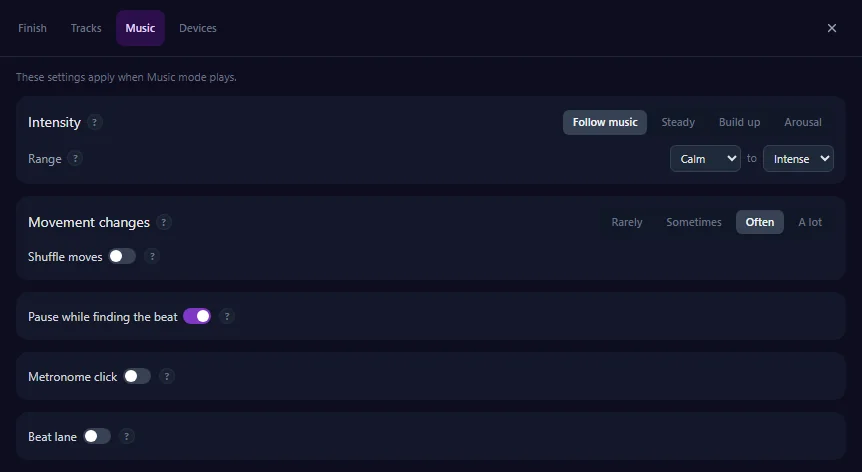
All Music settings are in the settings panel of the player (gear icon), in the Music tab.
The knob in Music mode
The knob sets how big the strokes are. The music picks which move plays and when. The higher the knob, the smaller the strokes, and at 100% the device stops. How fast they get smaller depends on the music set (see Music Sets below).
Intensity
Intensity sets how strong the moves are along the song: calm, normal, strong or intense. Pick a mode to see what it does on the same song.
Strokes get stronger and softer with the song.
Simplified view of one song. The gray line shows how loud the music is, the colored bar the level of the moves, and the bottom curve an example of the strokes you get.
Drops get special care. In the bar before a drop, the moves hold back: no new move and no extra strength, so you feel the drop when it comes. On the drop, a full stroke starts right on the first beat, and the moves stay at least that strong for the next 4 bars, unless a break comes first.
Range
The lowest and the highest level Music mode can play. For example, Normal to Strong never plays Calm or Intense moves. It works with Follow music, Steady (Auto), Build up and Arousal. A level you pick in Steady is played as it is. Silent parts and a still start of a song stay still.
Movement changes
This sets how often the move switches to a new pattern. Each color below is one pattern.
Only when the music changes (a new part, a drop, a break).
16 bars of one song. A new color means a new pattern. The curve below is an example of the strokes of each pattern.
Shuffle moves
Off: each time you play the same file, you get the same moves in the same order. Each file has its own order. On: you get a new order each time you start a session. It stays the same until you stop, even if you pause or jump to another part. Only the order changes. The moves still come from your music set. Their strength does not change. If you change this while the music plays, the change starts on the next bar.
Metronome click
A short click on each beat where a stroke lands, at the same moments as the dots of the beat lane.
Beat lane
A bar under the video where the next strokes scroll to a NOW mark. Each dot is a stroke landing on its beat. A bigger dot means a longer stroke.
Dots: one dot per stroke, on a line. Curve: the dots sit on the path of the stroke, so you also see how it moves between beats.
Demo on a steady beat. In the player, the bar sits under the video.
In full screen, the bar goes on top of the video. You can put it at the top or the bottom of the screen, and change its height and how dark its background is.
Pause while finding the beat
When you start or jump to a part of the media that is not analyzed yet, the media pauses until the device is on the beat, then plays again. If you paused it yourself, it stays paused. Press play to skip the wait.
Finish mode in Music mode
The Finish mode button (or the O key) works in Music mode too. It plays the finish program you picked in the settings panel, on every channel this program uses. During the orgasm, the strokes follow the program, not the beat. If no program is picked, it plays Slow & Deep.
Music Mode: Browser Support
Music mode finds the beats of your media with a small AI model. The model runs in your browser, so I never receive your files. It needs a recent browser with WebAssembly SIMD and Web Workers. Without them, the Music tab stays visible, but a session cannot start in it.
To use Music mode, update your browser, or use a recent Chrome, Edge, Firefox or Safari (version 16.4 or newer on iPhone and iPad). Behavior and Funscript modes work in any browser.
CEditor
Editor Overview#
The Editor Mode lets you create and customize behaviors using visual curves. Each base parameter (motion / stroke zone, amplitude, velocity, hold) is defined as a curve that maps arousal level to a value.
The editor has 3 columns: a browser on the left, the editing area in the center, and a real-time emulator on the right. The tabs at the top of the browser switch between behaviors, music sets (the moves of Music mode, see Music Sets) and finish programs.
A behavior drives more than stroke: a channel selector at the top of the curve column focuses one channel at a time (stroke, vibration, or an OSR axis), so the base curves you edit belong to the selected channel. Add or remove channels there. The variations below are shared across all channels.
The emulator on the right has a mono / multi-axis toggle: mono shows a Handy-style stroker (stroke axis only), multi shows a 3D OSR view driven by every channel of the behavior. It is a pure editor preview, no device or binding needed.
Understanding Curves#
Every behavior parameter is controlled by a curve. The X axis is arousal (0-100%), the Y axis is the parameter value. Click to add points, drag to move them, double-click to remove.
Velocity curve: controls stroke speed. Typically decreases as arousal rises (slower near the edge).
Drag points to reshape the curve - click to add, double-click to remove
Stroke Zone: two curves (min/max) define the physical movement range. The device moves between these boundaries.
Stroke zone min/max curves
Amplitude curve: what portion of the stroke zone is used per stroke. At 100% the full zone is used, at 50% only half.
Hold curve: pause duration (ms) between strokes. Typically increases at higher arousal to slow things down.
Range mode adds a second curve - the engine picks a random value between the two curves for each stroke, adding natural variation.
Stroke Zone#
The stroke zone defines the physical boundaries of movement. Stroke Min sets the bottom limit, Stroke Max sets the top limit. The visualization shows the active range.
Amplitude determines how much of the zone is actually used per stroke. A narrow amplitude within a wide zone creates subtle movements.
Adjust the sliders to see how stroke zone and amplitude interact
Device simulator
Variations#
Variations are temporary movement patterns that layer on top of the base curves. At each engine cycle, a weighted random draw decides whether a variation fires or the base motion continues. When a variation is selected, its shape takes over the device for one or more loops, then hands back to the base curves. This creates moments of surprise and personality within a behavior's steady rhythm.
Base curves alone produce a smooth, predictable motion - pleasant, but eventually repetitive. Variations break that predictability. A sudden slow full stroke, a quick vibrato, a lingering hover at the top - these are what make a behavior feel alive. They are entirely optional: a behavior with zero variations still works perfectly using its base curves alone. But adding even one or two variations transforms the experience from "mechanical" to "expressive".
Shape
The shape is the heart of a variation. It defines the exact movement pattern the device will follow. The X axis is time in milliseconds, the Y axis is position from 0% (bottom) to 100% (top). You draw the shape as a curve with control points - the device will interpolate smoothly between them.
A simple full stroke is just three points: 0% at 0ms, 100% at 500ms, 0% at 1000ms. A sinuous wave might be: 10% → 70% → 30% → 90% → 10% over 1200ms. You can create anything: quick jabs, slow plateaus, complex multi-point patterns. The shape can be as simple or intricate as you want.
Probability
Each variation has a probability curve that controls how often it triggers at each arousal level. The curve maps arousal (0-100%) to a trigger chance (0-100%). At any given arousal level, the engine reads each variation's probability, then makes a weighted random draw.
If a variation reads 30% at the current arousal, it fires roughly 30% of the time. If you have two variations at 25% and 15%, there's a 40% combined chance that one fires, and a 60% chance the base motion plays instead. When the total across all variations exceeds 100%, a variation always plays - the base motion never gets a turn. Use this intentionally: leaving room for base motion (keeping totals around 60-80%) often sounds better than variations playing non-stop. You can also force the opposite on purpose - set a single variation to 100% across the whole arousal range so it always plays, then give it Curve and Zone dependencies: it runs continuously while still following the base curves, so the edging logic (slowing down and shrinking as arousal rises) is preserved.
Stroke Zone
Stroke Zone controls where the shape positions land on the device. In "Absolute" mode, shape values map directly to 0-100% of the full device range - the variation ignores the current stroke zone entirely. In "×Zone" mode, the shape is compressed into the stroke zone defined by the base curves at the current arousal level. As the zone narrows at high arousal, the variation narrows too. A multiplier lets you scale the effect: ×0.5 compresses more, ×2.0 expands beyond the zone.
Speed
Speed controls how fast the shape plays. In "Shape timing" mode, the X axis of the shape is used as-is: a 1000ms shape always takes 1 second regardless of arousal. In "×Speed" mode, the shape duration is scaled by the base velocity curve. When velocity is low (high arousal), the shape slows down. When velocity is high, it speeds up. This keeps the variation in step with the base rhythm. The multiplier adjusts the scaling factor.
Think of it as stretching or compressing the shape in time. In "×Speed" mode at high arousal, a 1-second shape might take 3 seconds to play. At low arousal, the same shape might play in half a second. The shape itself stays the same, only the playback speed changes.
Amplitude
Amplitude controls how much of the stroke zone the variation actually uses. In "Full range" mode, the shape uses the entire available width. In "×Amplitude" mode, the width is scaled by the base amplitude curve. At high arousal where amplitude is typically low, the variation becomes a micro-movement. This is especially effective for subtle variations near the edge. The multiplier adjusts the effect.
Loops
Loops control how many times the shape repeats before the engine moves on. You set a min and max - the engine picks a random number in that range each time the variation fires. Loops 1-1 means the shape plays once. Loops 3-5 means 3 to 5 repetitions. More loops means the variation dominates longer before returning to base motion.
Drift
Drift adds organic randomness to repeated loops. When enabled, the center position of each loop shifts randomly within the available zone. Instead of the shape repeating from the exact same starting point, each repetition starts from a slightly different position - creating a more natural, less mechanical feel. Drift is automatically disabled when loops = 1 (nothing to vary between) or when amplitude fills the entire zone (no room to shift the center).
Cross-channel variations
A variation is shared across every channel of the behavior, not stroke-only. The card shows a composite preview: all channel shapes superimposed, the active channel (the one selected by the tabs) in front, the others dimmed in the background. Channel chips let you switch the focused channel in one click. A channel with no shape shows a "+ Add Shape" overlay that creates and opens its shape; a channel with a shape shows an edit pencil. You edit every channel from the same variation card, without leaving it.
Zone and Amplitude dependencies are set per channel. They describe how a shape relates to that channel's own base curves, so each linear channel keeps its own spatial relationship. Speed, Hold, Loops, and Drift stay common to the whole variation - they carry the shared tempo that keeps the channels coordinated. Switch the channel tab to view or edit another channel's Zone and Amplitude.
A variation can run without stroke - useful for a roll-only or vibration-only accent. Every channel has a "Remove" action; on the stroke channel it freezes the stroke (it holds position instead of following its shape). The timeline then comes from the secondary channels, and the stroke shape is kept so you can restore it. On a single-axis device a stroke-frozen variation simply stays still, which is expected.
Preview
You can preview each variation directly in the editor. The thumbnail and parameter readouts next to each variation show the calculated values at the current arousal level. Note: when a base curve uses Range mode, the preview displays a static value from the primary curve - during actual playback, the engine picks a random value between the two curves on each cycle. For a live test, click the Play button on a variation card - this forces the variation to play on loop in the emulator, bypassing probability and using the full runtime including range randomization. You can see exactly what the variation feels like at the current arousal, then stop to return to normal behavior.
Collection & Linking
Variations are stored in a shared collection, independent from behaviors. When you add a variation to a behavior, you choose between two modes:
- Link - Link - the variation is shared. If you edit it in one behavior, the changes appear everywhere it is used. A chain icon and a count badge show how many behaviors reference it. This is ideal for signature patterns you want consistent across multiple behaviors.
- Copy - Copy - the variation is duplicated as an independent copy. Edits only affect the current behavior. Use this when you want to customize a variation without impacting others.
You can unlink a shared variation at any time by clicking the unlink button on the variation card. This creates a private copy for the current behavior while leaving the original intact for other behaviors. This action is irreversible.
You can also create standalone variations in the collection that are not attached to any behavior. These are useful for building a library of reusable patterns - for example, orgasm variations you want to pick from when configuring different behaviors.
Built-in presets and their variations are read-only. When you edit one, The Edgy automatically works on a private copy and leaves the original intact, so you can never break a built-in by accident. To make global edits that propagate everywhere, duplicate the preset (or create your own variation) first: only your own linked variations update across every behavior that uses them.
Finish Program#
A finish program is a separate set of curves, edited on its own in the Finish tab of the Editor - it doesn't belong to any behavior. When orgasm is triggered, the device switches from the current source (behavior, funscript, or music) to this program's curves. The X axis is orgasm progress (0% start to 100% end) instead of arousal.
Orgasm curves define each channel independently, the same way behavior curves do. Any channel you don't define falls back to a neutral value.
Orgasm variations work like regular variations but use orgasm progress for their probability curves instead of arousal level.
Orgasm duration can be Fixed (exact time) or Range (random between min and max). The progress bar shows remaining time.
Music Sets#
A music set is a small library of strokes. The knob sets how big the stroke gets; the music picks which stroke plays and when. Add variations, draw each shape, then preview on a steady beat.
The app comes with ready-made sets. To make your own, open the editor, go to the Music sets tab, then duplicate a set or create a new one.
Amplitude
The amplitude curve sets how big the stroke gets, from the arousal knob. The music never changes the size, only the moves. At 100 the stroke is as big as the tempo allows.
Variations & levels
Each variation is one stroke shape. A shape is not tied to one level: the program plays the same shape over 1, 2, 4 or 8 beats, so it can be calm or strong. Played fast, it is strong. Played slow, it is calm. The speed of the song counts too: the same shape is calmer on a slow song. A loud part of the song asks for strong moves and a quiet part for calm ones, and the program picks a shape and a length that fit. The color of a card only shows the level at the length you drew, with the preview song.
Length
Length is how many beats you draw the shape on. It is there to help you draw: the beats show on the grid, so you get a clear idea of the timing. It does not lock the shape to this length. The program can always play it at this length, and also shorter or longer when the move stays clear at the song speed.
Shape
Draw the stroke over time. Click to add a point, drag to move it, right click to remove it. The first and last points stay linked so the loop has no seam. Points snap to an eighth of a beat and to 5%.
Channels
A set can drive more than the stroke: a vibrator, a twist axis and so on. Add a channel with the + above the variations, then pick it to see and draw its shape in each variation. A variation can leave a channel empty: there, the device follows its own setup. Every channel plays at the same time and for the same length as the stroke.
Preview
The right panel plays the set on a steady beat. Turn the arousal knob to feel the size change, and try a Drop or a Break to see the level switch.
You can export your sets to a file, and import sets from other people, the same way as behaviors.
Creating a Behavior#
1. Open the Editor and click "New behavior" in the browser sidebar.
2. Set a name, icon, and description in the Meta tab.
3. Draw the base curves for the stroke channel: motion / stroke zone (min/max), amplitude, velocity, and hold. These define how the behavior responds to arousal. Add extra channels (vibration, OSR axes) from the channel selector and give each its own curves.
4. Add variations in the Variations section: define shapes, set probabilities, configure dependencies and loops. A variation is cross-channel - shape each channel from its card, or freeze the stroke for a channel-only accent.
5. Finish programs (what plays during orgasm) are separate from behaviors - create or edit them from the Finish tab of the browser, not as part of this behavior.
6. Test in the emulator - use manual or sweep arousal mode to preview all arousal levels.
Example: Gentle#
Let's walk through a real behavior to see how curves and variations work together. Gentle is built around soft, flowing movements that become increasingly subtle as arousal rises.
Base Curves
Velocity starts moderate (35%) and drops steadily to almost nothing (4%) at the edge - strokes get slower and slower. Amplitude is 100% at rest (full range) but shrinks to just 5% at the limit - near orgasm, the device barely moves. The stroke zone narrows gradually: from nearly the full range (5-95%) at rest, to a tight band (45-55%) at the edge. Hold pauses are zero until 50% arousal, then climb steeply - 100ms at 75%, 400ms at 90%, 800ms at the limit. The result: gentle, unhurried movements that become micro-caresses at high arousal.
Variations
Gentle has 3 variations, each with a different role:
1. Warming Caress
Warming Caress - A slow, full stroke (bottom → top → bottom over 1200ms). High probability at rest (35%), fading to 5% at the edge. Uses Curve dependencies for velocity and hold, Zone for stroke: it adapts naturally to the current base motion. Repeats 1-2 times. This is the "signature move" at low arousal.
2. Flowing Wave
Flowing Wave - A sinuous wave pattern (10% → 70% → 30% → 90% → 10% over 1200ms). Moderate probability (18% at rest, 8% at edge). Same Curve/Zone dependencies. Plays once. Adds fluidity and unpredictability.
3. Lingering
Lingering - Stays high (80% → 95% → 85% → 100% over 1000ms). Rare at rest (5%) but common near the edge (22%). Repeats 1-3 times. This creates the "hovering at the top" feeling that's characteristic of gentle teasing near orgasm.
Finish Program
Gentle only handles edging - orgasm plays whatever program you picked in the settings panel (Slow & Deep by default). If you want the Gentle feel to carry through the finish too, create a matching finish program in the Editor's Finish tab: for example, velocity easing from 40% down to 15%, amplitude from 70% to 30%, no hold pauses.
Notice how all the pieces reinforce the personality: the curves create a smooth, decelerating base, the variations add character at specific arousal ranges, and the orgasm config provides a distinct finish. This layered approach is what makes each behavior feel unique.
DReference
Keyboard Shortcuts#
| Key | Action |
|---|---|
| Space | Space: play/pause |
| Escape | Esc: stop |
| ↑ / ↓ | Up/Down: arousal +-5 |
| ← / → | Left/Right: arousal +-25 |
| Ctrl+Wheel | Ctrl+wheel: arousal |
| O | O: finish mode |
| 1-9 | 1-9: switch favorite behavior (keyboard or numpad) |
| 0 | 0: switch to funscript mode |
About The Edgy#
I'm Glavious, a freelance developer trying to make my way in an increasingly tough world. I build things I care about, and The Edgy is one of them.
I've always been a fan of edging. The sync-based approach with interactive devices is great, but I felt it lacked real-time control - the ability to tell your device exactly where you are, and have it back off as you get closer. That's what The Edgy is built for. I hope everyone finds something they enjoy in using it.
The Edgy is and will remain completely free. No accounts, no subscriptions, no data collection. Everything runs in your browser.
Supporting the project
The Edgy is sustained through affiliate links with The Handy, plus tips and an optional pack of ready-made behaviors on Ko-fi. If you enjoy the app, either one helps keep it free and actively developed.
Disclosure: Some links above are affiliate links. I may earn a commission at no extra cost to you. It funds The Edgy and never affects what I recommend.
FAQ#
Should I use Intiface or the native Lovense connection for my Lovense toy?
Both work. Intiface is the more reliable option and the one I recommend: it drives 750+ toys and handles fast scripts well, but it needs Intiface Central running on a computer and a Bluetooth pairing. The native Lovense connection (Game Mode) skips Intiface and talks to your toy directly over WiFi through the Lovense Remote phone app, which is handy if you would rather not install Intiface. It is experimental though: the toy firmware controls the playback timing, so fast scripts can drift or lag a little. Rule of thumb: pick Intiface for the most reliable result and fast scripts, and the native connection for a lighter, no-Intiface setup or slower content.
I connected my device but it moves strangely, or not at all. What is wrong?
Connecting a device only links it, you still have to bind its actuator to a channel. Open the binding panel and check that your device actuator is bound to a channel (stroke for a stroker, vibrate for a vibrator) and that the binding is enabled. A vibrator with no vibration track of its own follows the stroke speed by default, so it needs a stroke to react to. If nothing moves at all, make sure a session is playing and that the right channel is being fed. Jerky motion on a Lovense toy over the native connection is expected on very fast scripts (see the question above).
My Lovense toy will not connect in Game Mode.
Your phone (running the Lovense Remote app in Game Mode with LAN enabled) and the device running The Edgy must be on the same WiFi network. Enter the exact local IP the app shows into the Lovense field, and keep the Lovense Remote app open. If it still fails, use Intiface instead.